How to remove tag in Facebook Posts and Photos: Notifications from friend's post can sometimes be annoying. Imagine a friend of yours updated his/her status or changed his or her profile picture and tagged you.
The tagging is not bad but getting notifications from every Tom, Dick And Harry that comments on the post is what will likely bother us. Now, we can untag ourselves from an update on a friend's post or. Its very simple. Read on to see how to do it.
The tagging is not bad but getting notifications from every Tom, Dick And Harry that comments on the post is what will likely bother us. Now, we can untag ourselves from an update on a friend's post or. Its very simple. Read on to see how to do it.
ON MOBILE:
To remove a tag from a post you've been tagged in:
1. Tap ☰ at the top right hand corner of your fb page
2. Click on your name, this action takes you to your profile
3. Scroll through your timeline to search for the post you want to untag yourself from
4. Click on  in the top right of the post and select Remove Tag.
in the top right of the post and select Remove Tag.
1. Log in your profile on Facebook (email address or phone number and password)
2. Click on the  on the upper right hand corner of your Facebook page
3. On the drop-down menu, click on Activity log
 4. Click on Posts you're tagged in at the left-hand side of the page
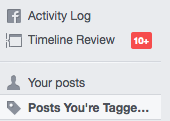 5. This will pop up a screen that shows all the posts you've been tagged in, scroll through and select the post you want to untag yourself from by clicking on the pencil icon by the right of the post

on the upper right hand corner of your Facebook page3. On the drop-down menu, click on Activity log

6. On the drop down menu, click on Report/Remove tag
 7. On the screen that pops up, tell Facebook the reason you want to be untagged then click on Continue
8. Follow the prompt.
Simple! Start untagging yourself from those post you don't like now!
8. Follow the prompt.
Simple! Start untagging yourself from those post you don't like now!
how to remove tags on Facebook Account call +1 833 272 O777___
ReplyDeleteCustomer service phone number +1 833 272 O777___@#@%$......:":":":":":"""
Customer helpline number is +1 866 - 528- 5OO'7
ReplyDeleteBest information i had ever seen ,.,;