How can you hide the people and pages you follow on Facebook- As we all know, by default, Facebook keeps people, pages and list you follow on its platform public and visible to every other user but you now have the choice of hiding it from other Facebook friends. Check out how to hide the people and pages you follow on Facebook.
Users now have full control on almost everything that appears on their profile for example: status, photos, albums and so on. Users also have the control of the audience of their contents for example: share with everyone, friends, friends of friends, groups and so on. Users can also manually hide a status from specific set of persons.
Users now have full control on almost everything that appears on their profile for example: status, photos, albums and so on. Users also have the control of the audience of their contents for example: share with everyone, friends, friends of friends, groups and so on. Users can also manually hide a status from specific set of persons.
If you do not want public visitors to your Facebook profile to see lists, pages and people you, then you just have to hide it from them.
See: How to Hide Your Facebook Friend List from Friends and Others
And seeing that someone is your mutual friend, your other friends usually accept the friend request. It’s kind of embarrassing when your female friend informs you that some mutual friend of yours has sent her a friend request.
It’s good you keep people and pages you follow visible to only you and hidden from public eyes.

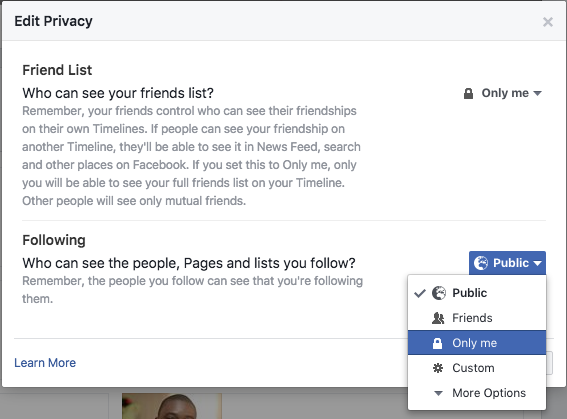
From here you can control who can see your pages and people you follow and who can’t. I keep mine visible to only me.
Conclusion
It’s good you keep people and pages you follow visible to only you and hidden from public eyes.
How to Hide People and Pages You Follow on Facebook
By default, everyone can see the Friends section of your profile. To adjust who can see your Friends section:
Go to your profile.
Click ''Following'' below your cover photo
Click on  at the top of the page and select ''Edit Privacy'' from the drop down menu
at the top of the page and select ''Edit Privacy'' from the drop down menu
Select an audience (ex: Friends, Public) to choose who you share your friend list with on your profile.
From here you can control who can see your pages and people you follow and who can’t. I keep mine visible to only me.
Conclusion
Keeping your followed Facebook pages, list and people visible to other people is totally a thing of choice, but I prefer keeping mine hidden and private to only for my own privacy.
Comments
Post a Comment