Facebook is a very useful tool for keeping in touch, sharing photos with family and friends, or just having a nose and seeing what everyone else is up to.
But as more people are becoming disaffected with the site, the question gets asked time and again - how do you delete your account? Facebook doesn’t make it easy, but it is possible. Follow our steps and you’ll wave goodbye to friends, pokes and annoying game invitations for good.
Step 1: Deactivate Facebook

If you want to try life without Facebook for a bit and see how it suits you, you can deactivate your account instead of deleting it for good.
When you deactivate your account, your Timeline and all information associated with it disappears from the site immediately. No one will be able to find you on Facebook, or see any of your personal information, but the minute you reactivate, it’ll all come back as if it never went away.
Step 2: Log out of Facebook-connected sites and apps
Plenty of websites use Facebook Connect – this is a service that syncs to your Facebook account, so that when you post a comment it will appear on Facebook at the same time. If you want to permanently delete your Facebook account, you’ll have to log out of all these sites that use Facebook Connect first.
If you see your Facebook profile picture by the comments section on a site, then you’ll need to log out of it. The easiest way to do this is to clear your web browser’s cache, which you can find out how to do below.
You’ll need to do the same thing with apps – such as Spotify - on your smartphone.
Tip 3: Download your archive
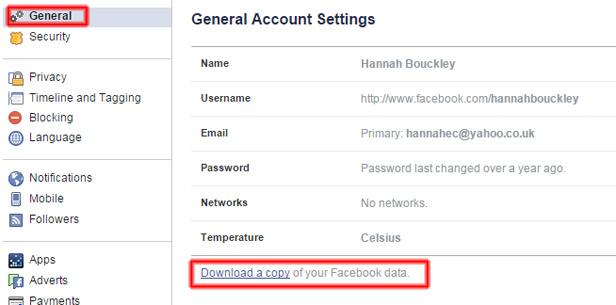
If you definitely want to delete your account, it’s worth downloading your archive first. This is a record of posts, photos and videos you’ve shared, messages and chat conversations.
Tip 4: Find the Delete link
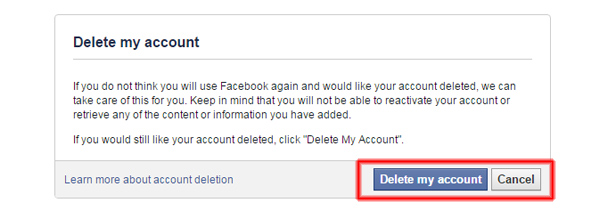
Facebook doesn’t make it easy to delete your account. You’ll have to find it in the Help Centre – there may be a link buried somewhere on the site, but the easiest way to find it is to Google “Delete Facebook account” or head to http://www.facebook.com/help/delete_account
Once you’ve clicked the link, you’ll be asked to log into Facebook again and you’ll arrive at the Delete My Account page.
Tip 5: Confirm the Delete
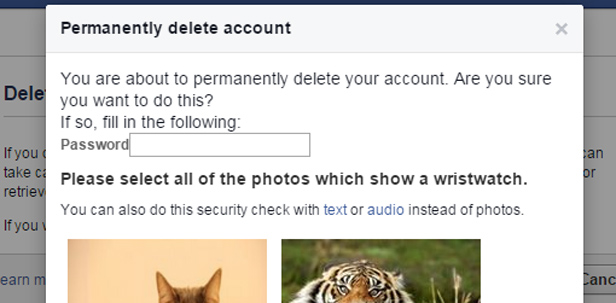
Click Delete My Account and you’ll be asked to re-enter your password and answer a question to prove you are a human. Then click OK.
Tip 6: The deletion period
It takes up to 90 days for your account to be fully deleted – just in case you change your mind, so don’t log in to Facebook – or any sites or apps that connect to the social network – during that time or your account will be reactivated and you’ll be back to square one.
But as more people are becoming disaffected with the site, the question gets asked time and again - how do you delete your account? Facebook doesn’t make it easy, but it is possible. Follow our steps and you’ll wave goodbye to friends, pokes and annoying game invitations for good.
Step 1: Deactivate Facebook
If you want to try life without Facebook for a bit and see how it suits you, you can deactivate your account instead of deleting it for good.
When you deactivate your account, your Timeline and all information associated with it disappears from the site immediately. No one will be able to find you on Facebook, or see any of your personal information, but the minute you reactivate, it’ll all come back as if it never went away.
- Click the down-facing arrow in the top right-hand corner of any Facebook page
- Navigate to Settings.
- Click General in the left column and Edit next to Deactivate your account.
- Click the link Deactivate your account and follow the steps.
Step 2: Log out of Facebook-connected sites and apps
Plenty of websites use Facebook Connect – this is a service that syncs to your Facebook account, so that when you post a comment it will appear on Facebook at the same time. If you want to permanently delete your Facebook account, you’ll have to log out of all these sites that use Facebook Connect first.
If you see your Facebook profile picture by the comments section on a site, then you’ll need to log out of it. The easiest way to do this is to clear your web browser’s cache, which you can find out how to do below.
You’ll need to do the same thing with apps – such as Spotify - on your smartphone.
Tip 3: Download your archive
If you definitely want to delete your account, it’s worth downloading your archive first. This is a record of posts, photos and videos you’ve shared, messages and chat conversations.
- Click the drop-down arrow
- Navigate to Settings
- Click General on the left-hand side.
- Look for the link that says: Download a copy of your Facebook data and you can start the download.
Tip 4: Find the Delete link
Facebook doesn’t make it easy to delete your account. You’ll have to find it in the Help Centre – there may be a link buried somewhere on the site, but the easiest way to find it is to Google “Delete Facebook account” or head to http://www.facebook.com/help/delete_account
Once you’ve clicked the link, you’ll be asked to log into Facebook again and you’ll arrive at the Delete My Account page.
Tip 5: Confirm the Delete
Click Delete My Account and you’ll be asked to re-enter your password and answer a question to prove you are a human. Then click OK.
Tip 6: The deletion period
It takes up to 90 days for your account to be fully deleted – just in case you change your mind, so don’t log in to Facebook – or any sites or apps that connect to the social network – during that time or your account will be reactivated and you’ll be back to square one.
Comments
Post a Comment